A – Configuration
← Back to index | ← A – Configuration
A1 · Prerequisites
| Component | Version / Detail |
|---|---|
| Enterprise Architect | 17.1 Build 1716 (64-bit, ULTIMATE) |
| OS | Windows 11 (VM – VMware Fusion on macOS) |
| Repository | MariaDB (~800 MB) + QEA SQLite (test model) |
| .NET Desktop Runtime | 9.0.5 or newer (required before install) |
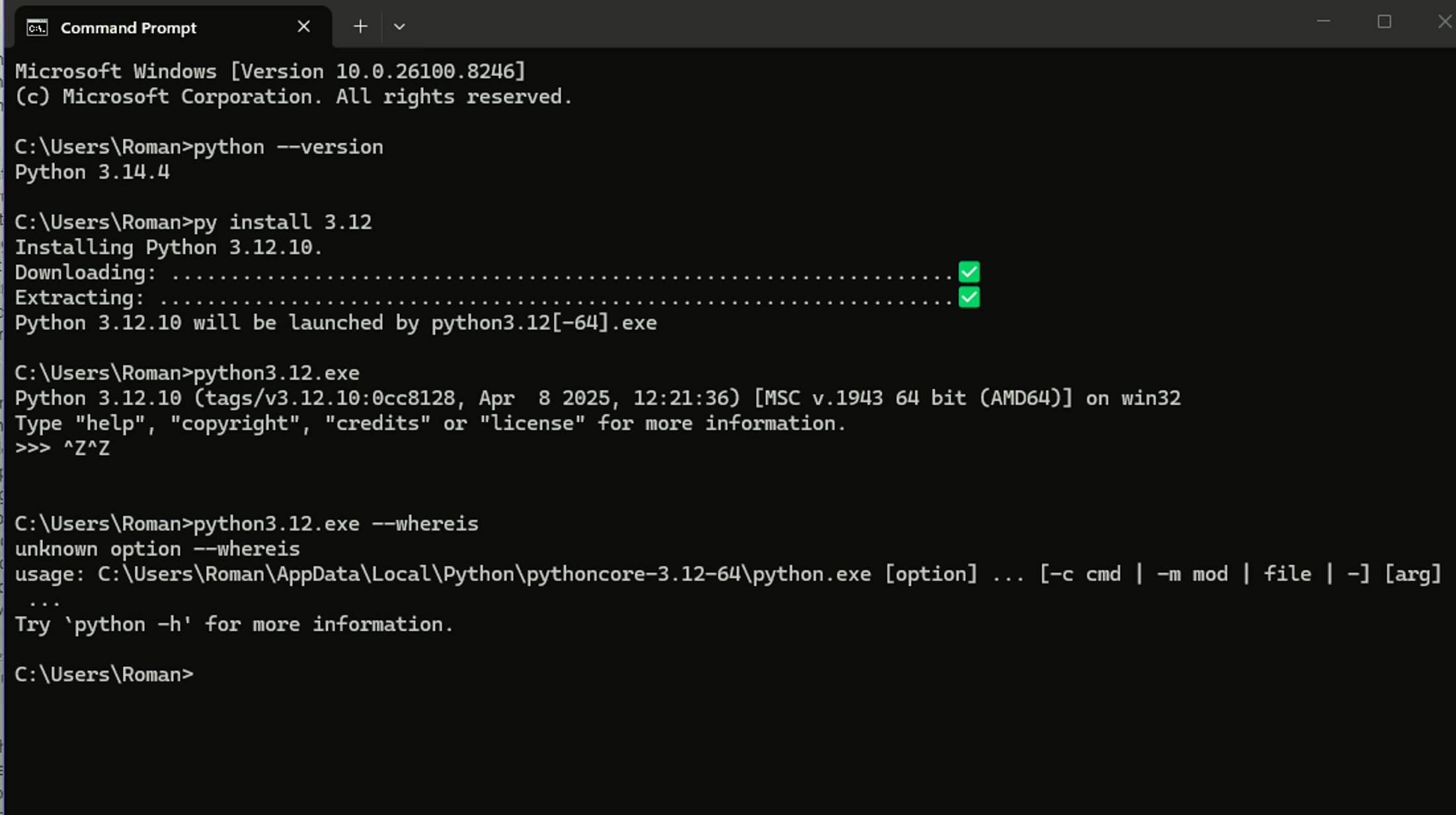
| Python | 3.12.10 (for Python Execution feature) |
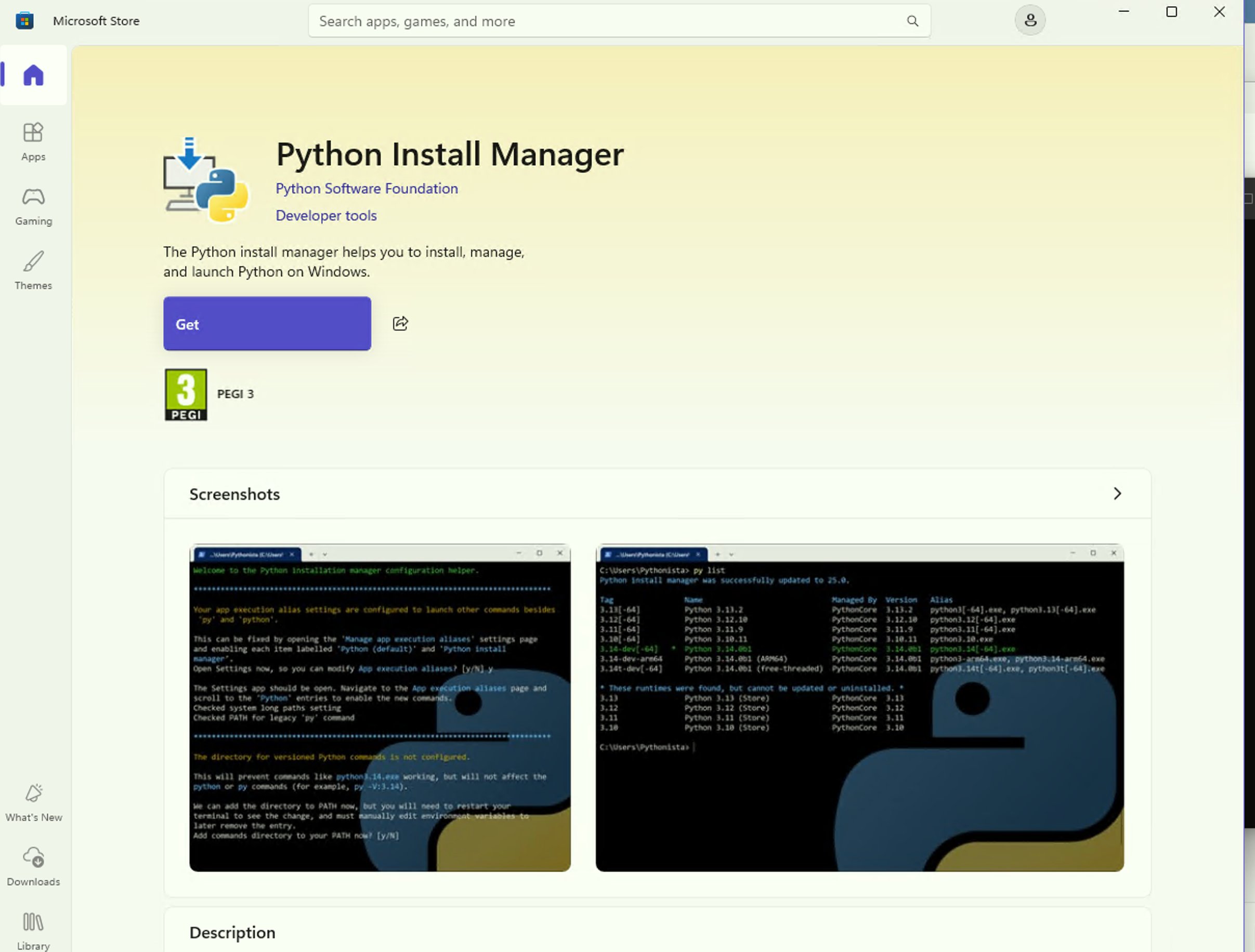
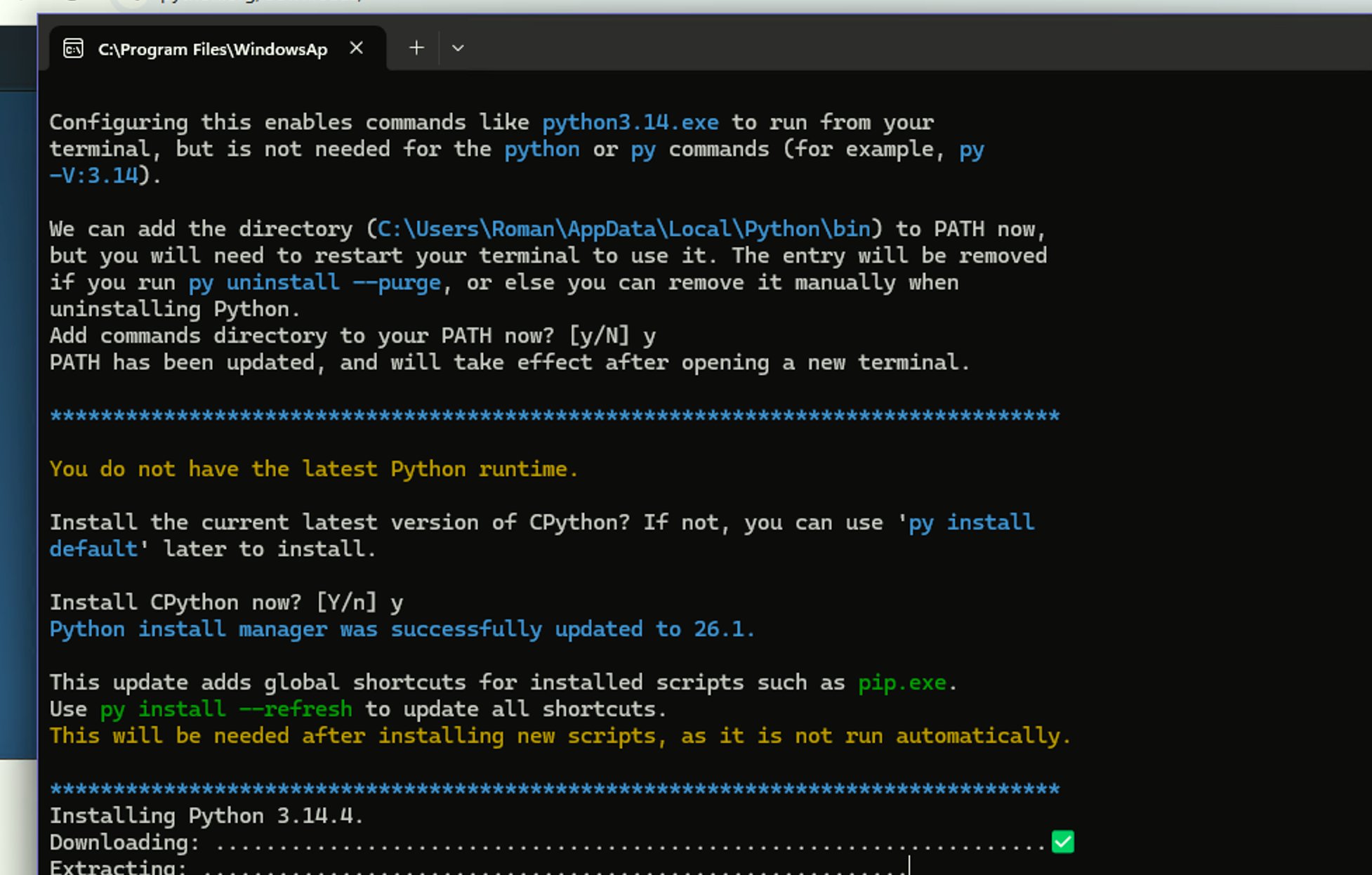
Note on Python version: Windows Python Install Manager installs 3.14 by default. Install 3.12 explicitly –
pywin32(EA COM interface) is not yet verified for Python 3.14.
A2 · Installation
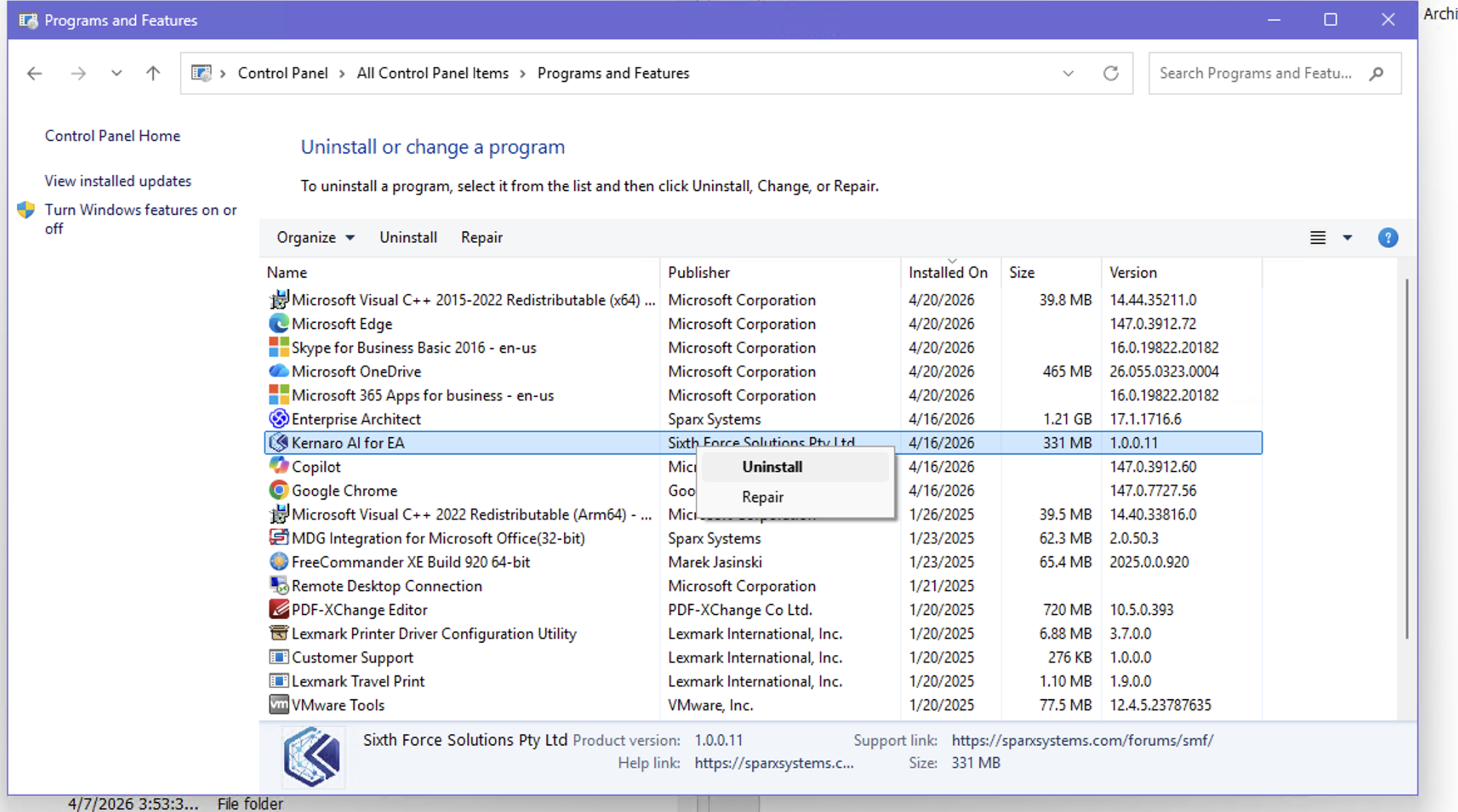
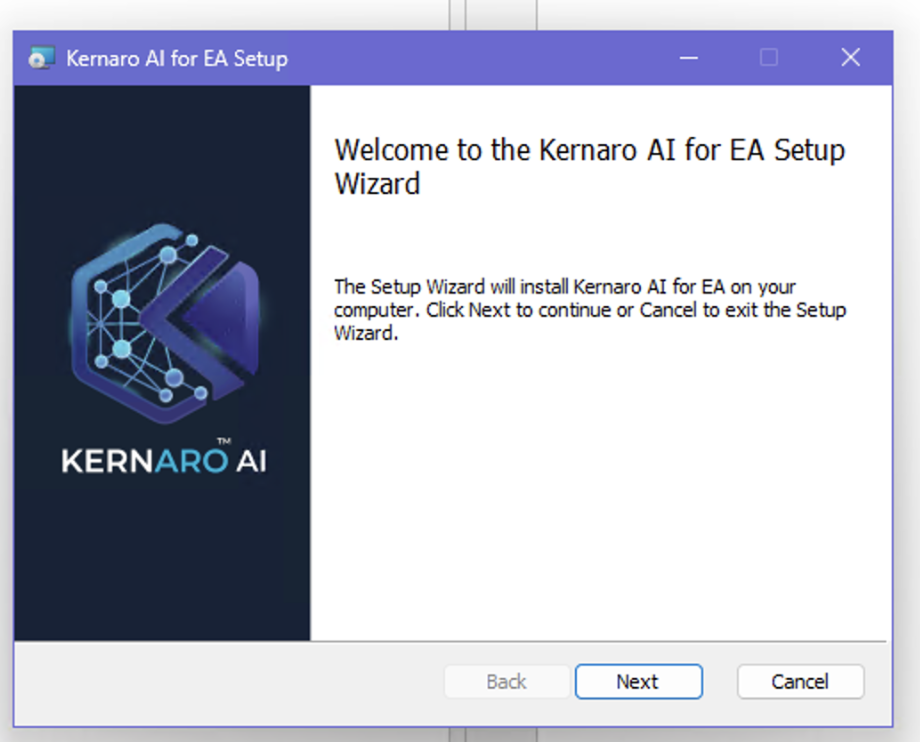
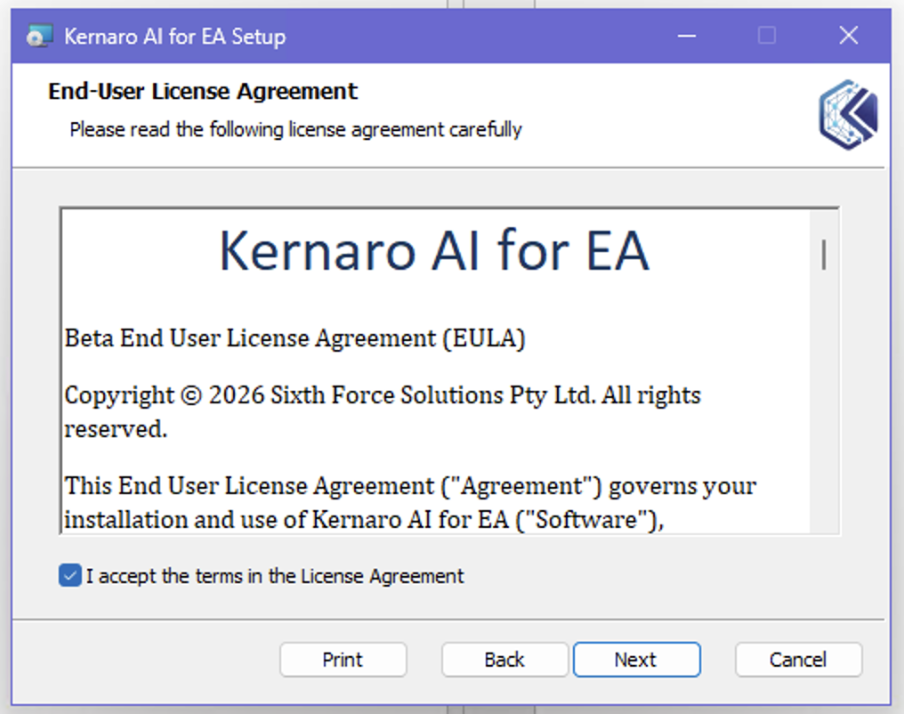
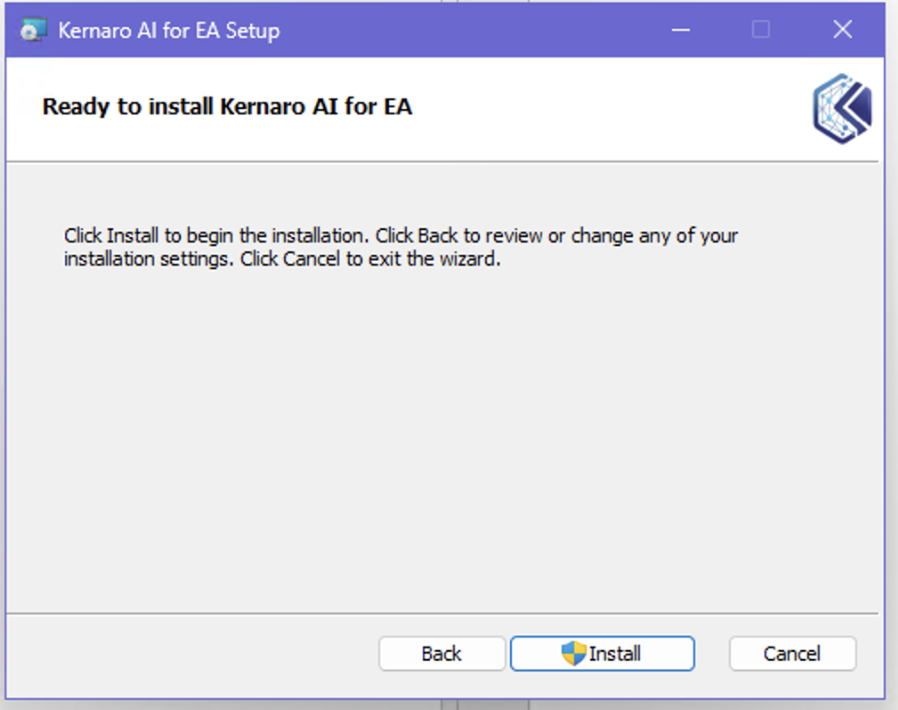
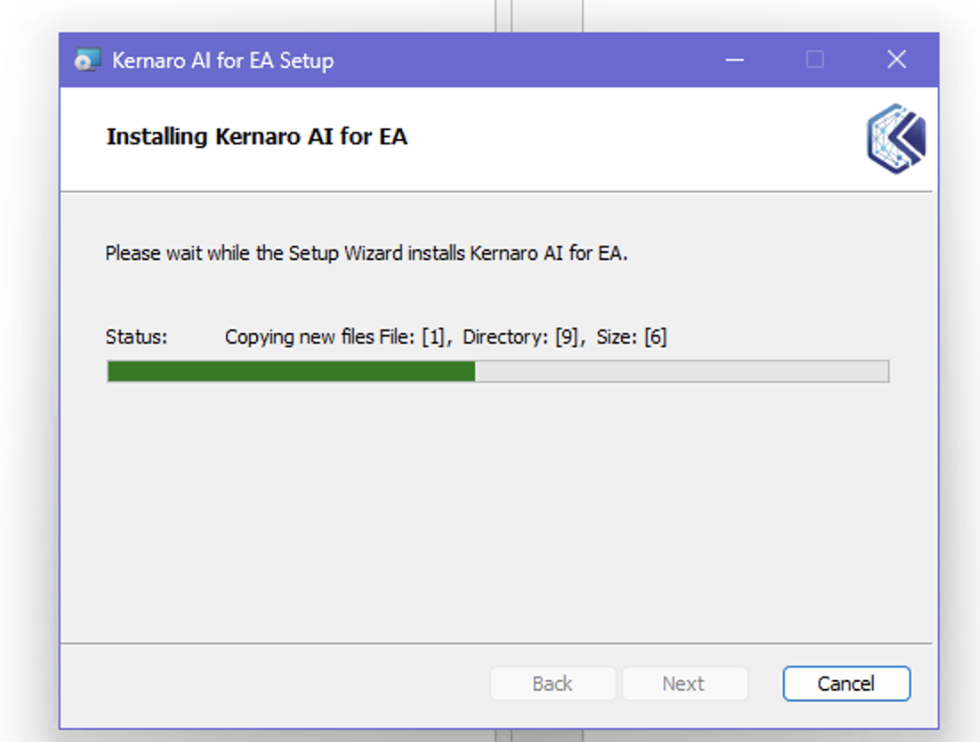
Download: .msi installer from Kernaro Beta link (email from kernaro@sparxsystems.com, valid 3 days).
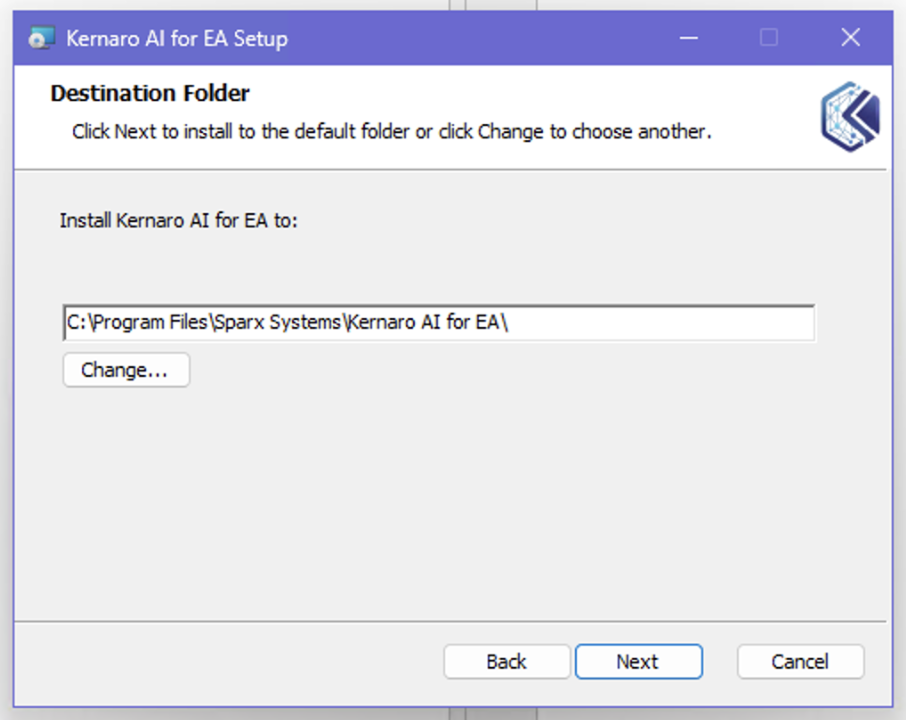
Installation path: C:\Program Files\Sparx Systems\Kernaro AI for EA\
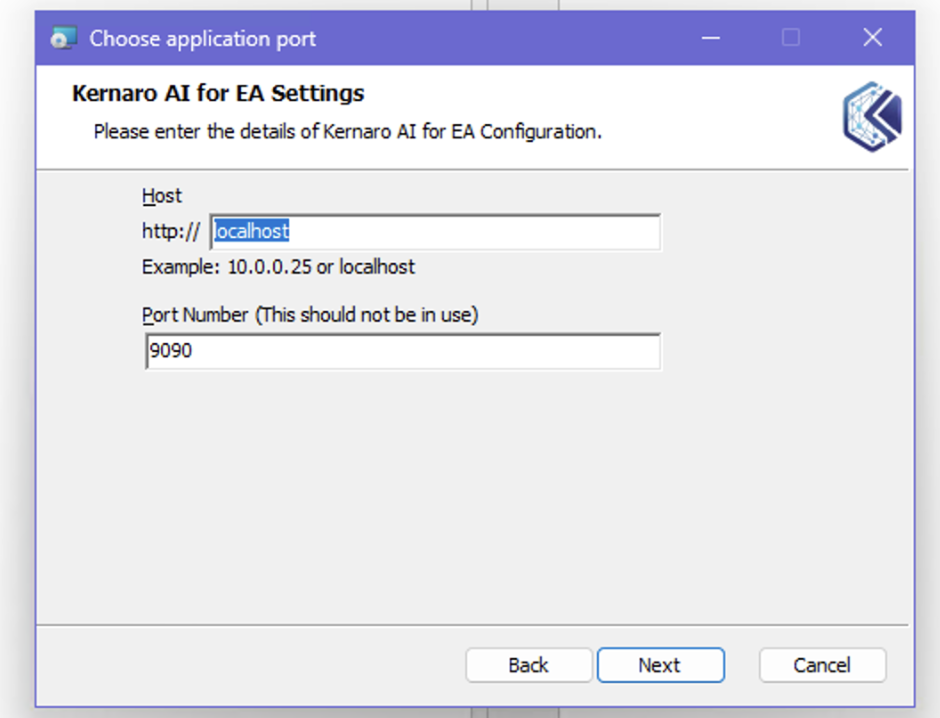
Port: 9090 on localhost (configurable during setup).
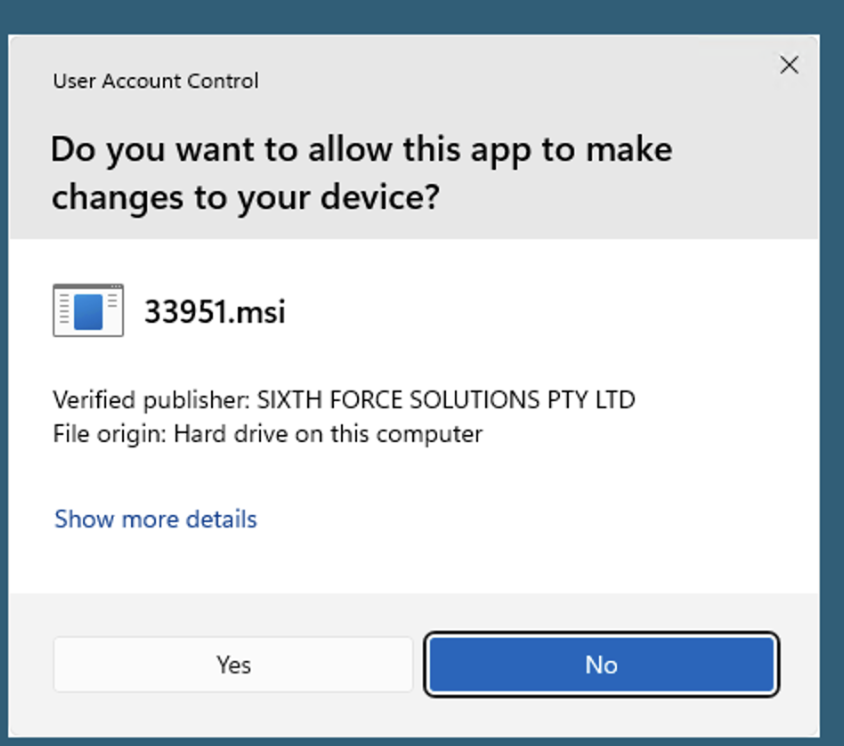
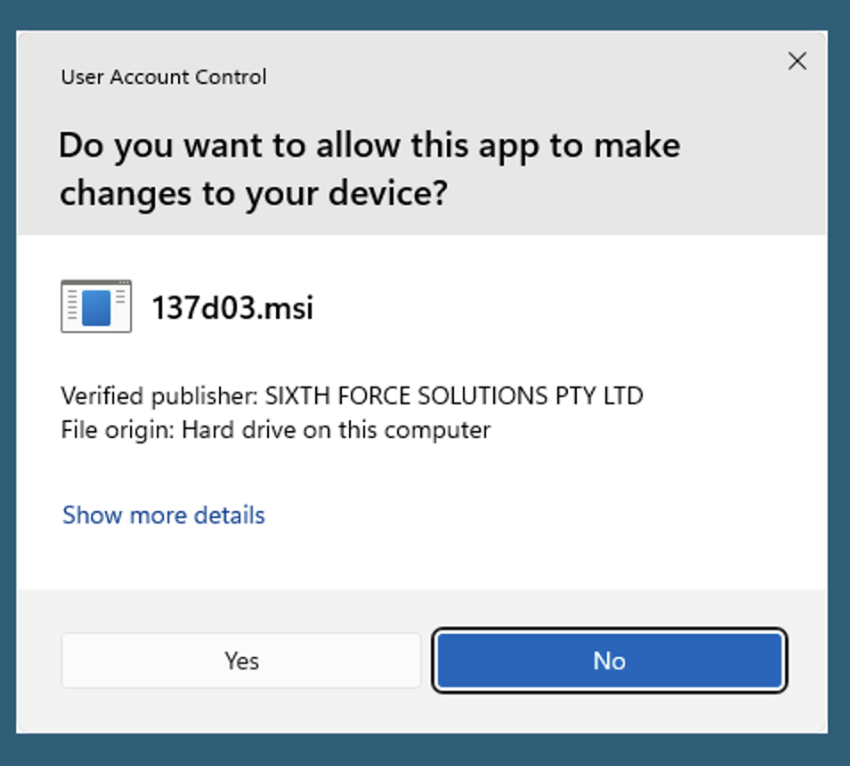
Publisher verified in Windows UAC: Sixth Force Solutions Pty Ltd.
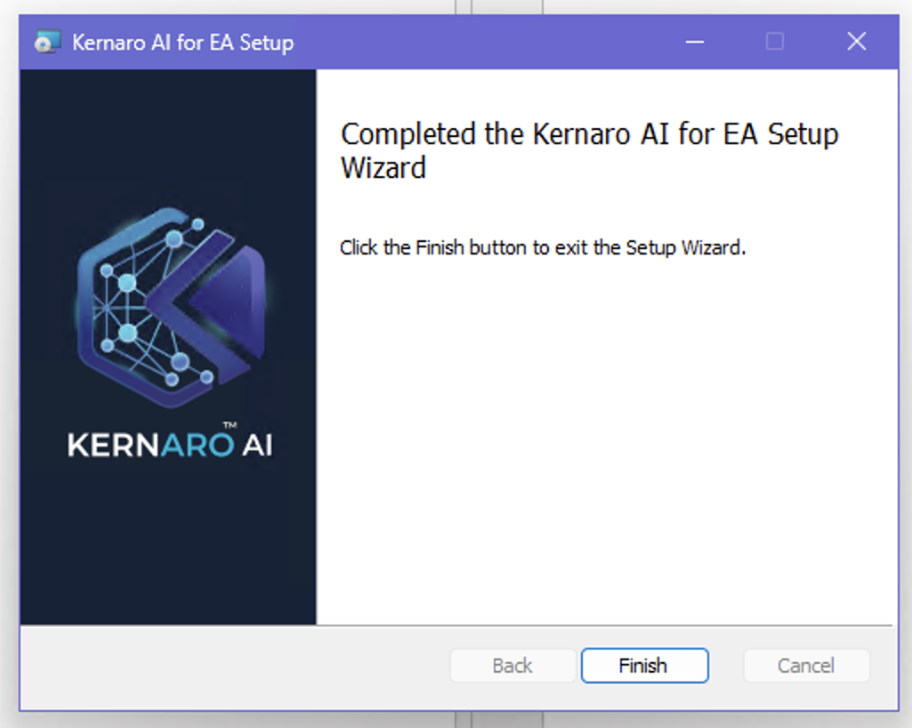
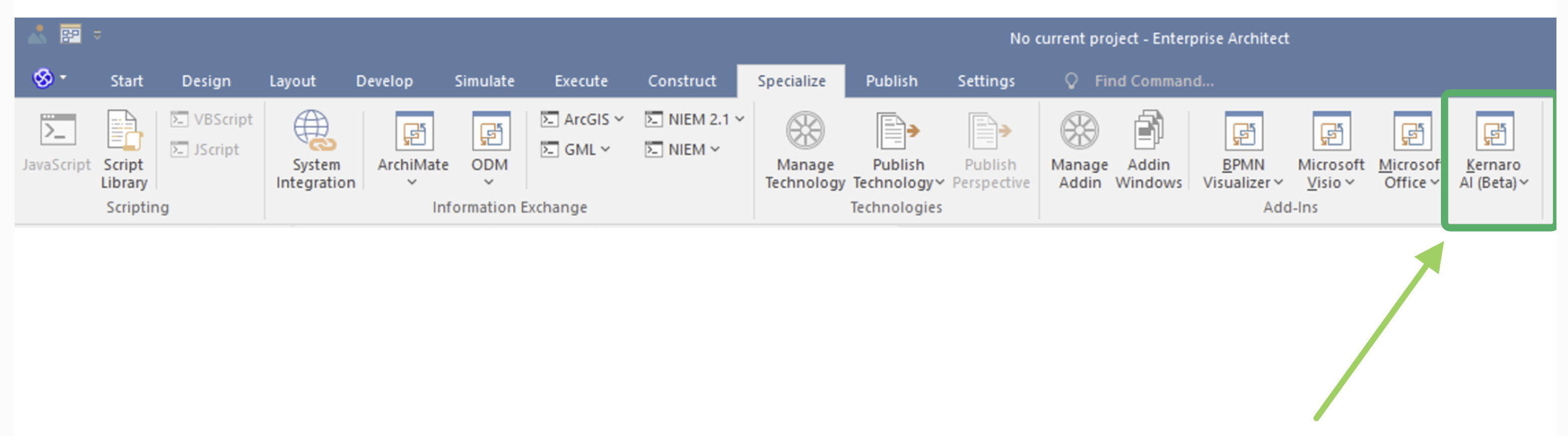
After installation, EA must be restarted. Kernaro appears in Add-Ins ribbon.
A3 · API Key – Claude Sonnet 4.6
- Create account at
https://console.anthropic.com[1] - Purchase API credits (minimum $5, prepaid model)
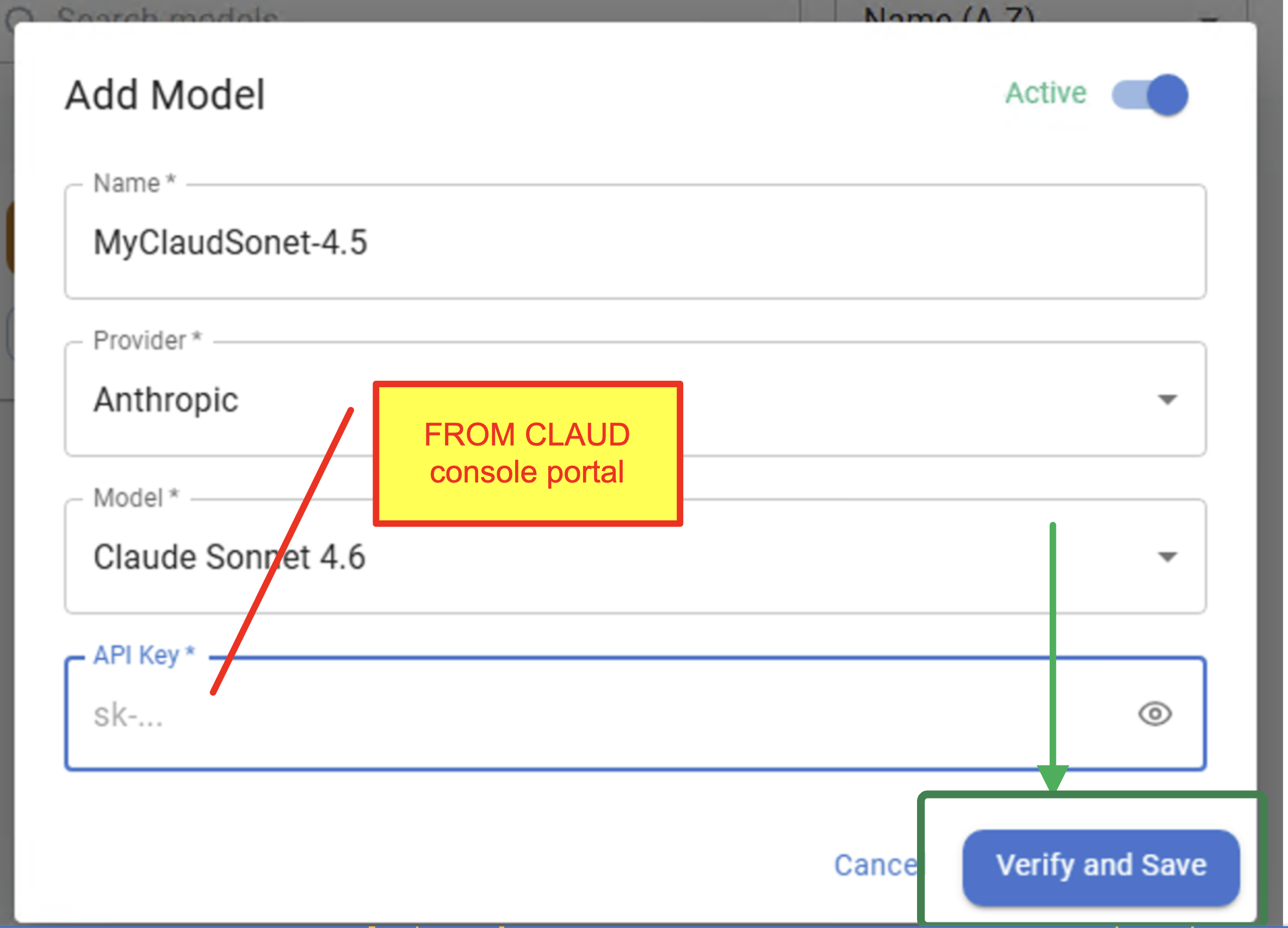
- Generate API key:
Account Settings → API Keys - In EA:
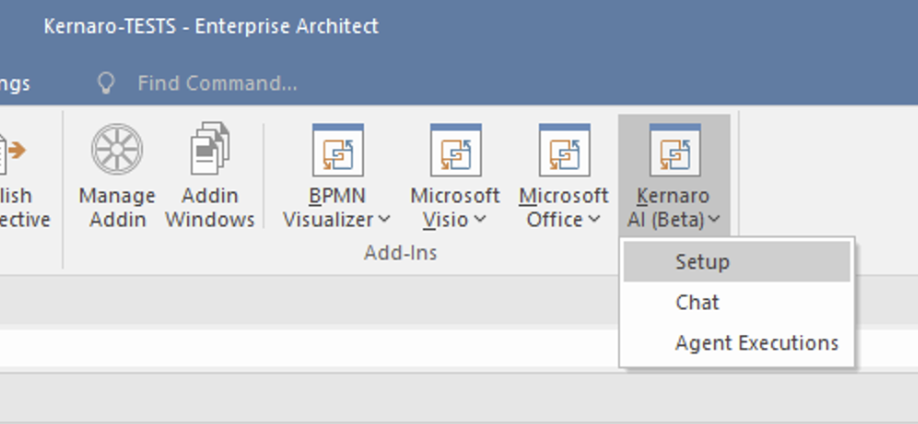
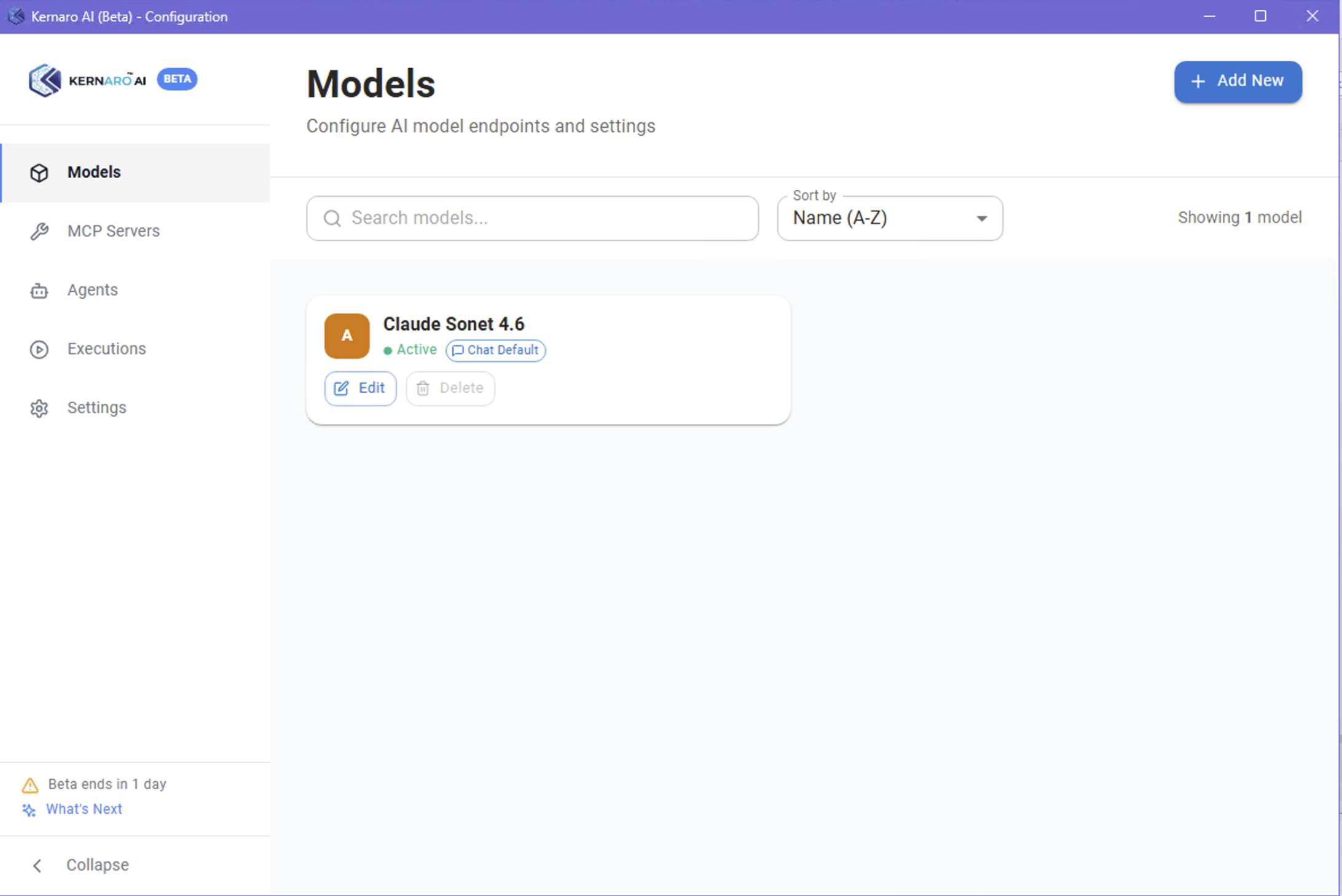
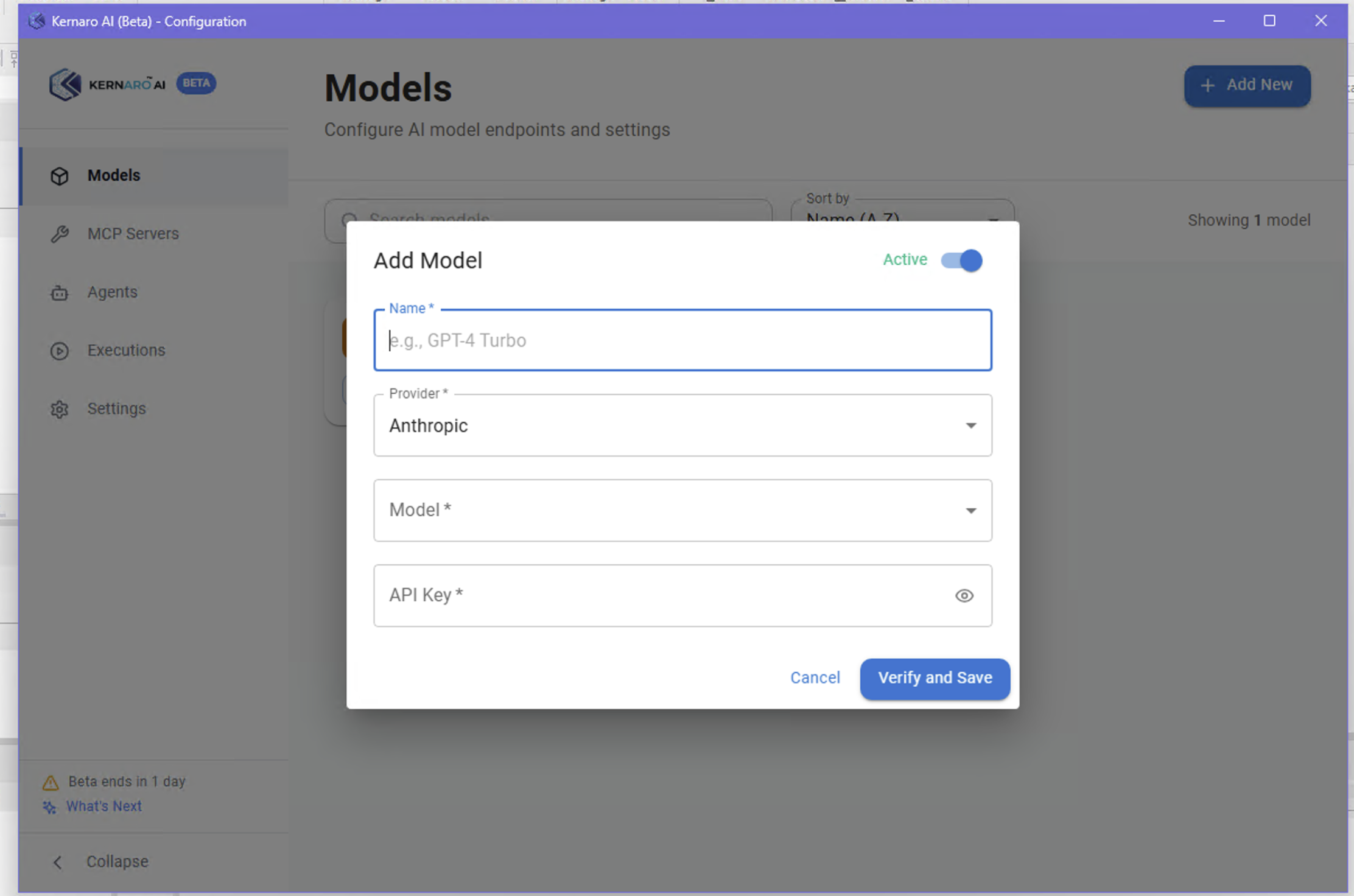
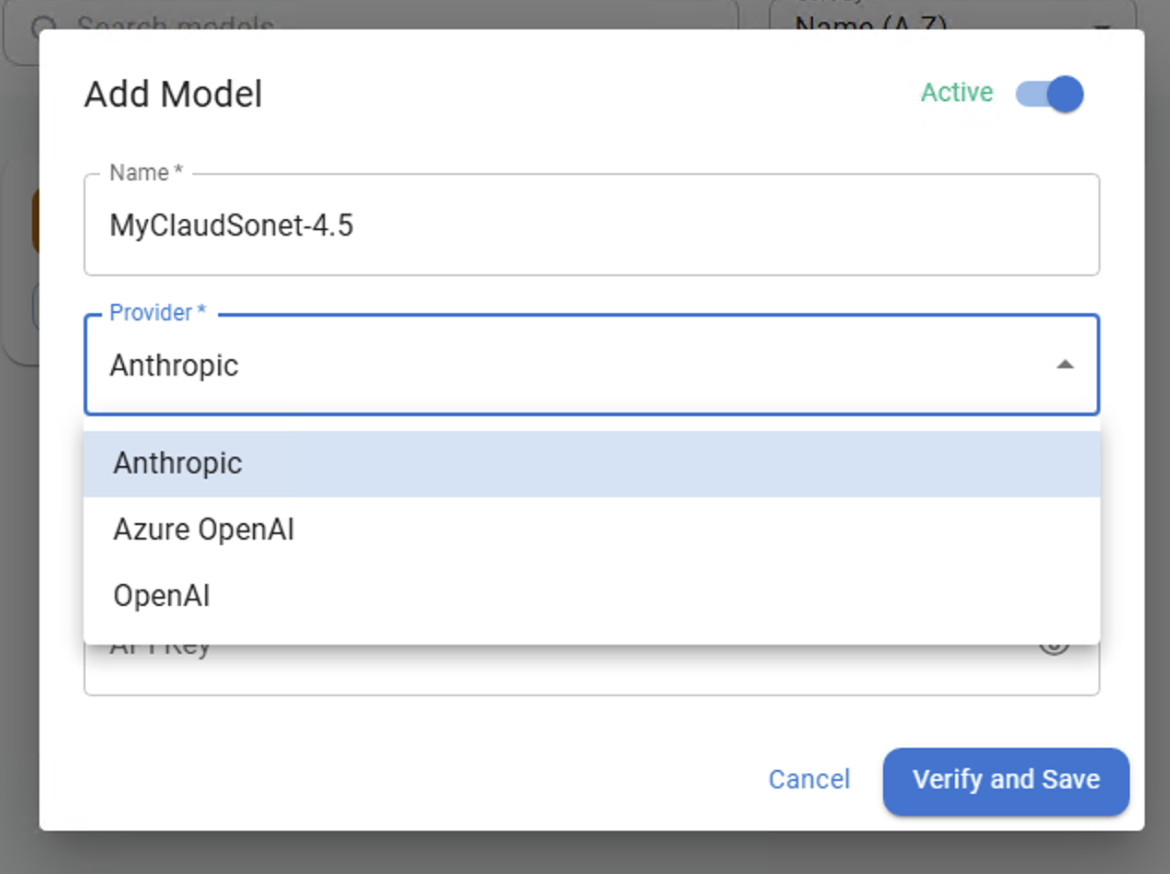
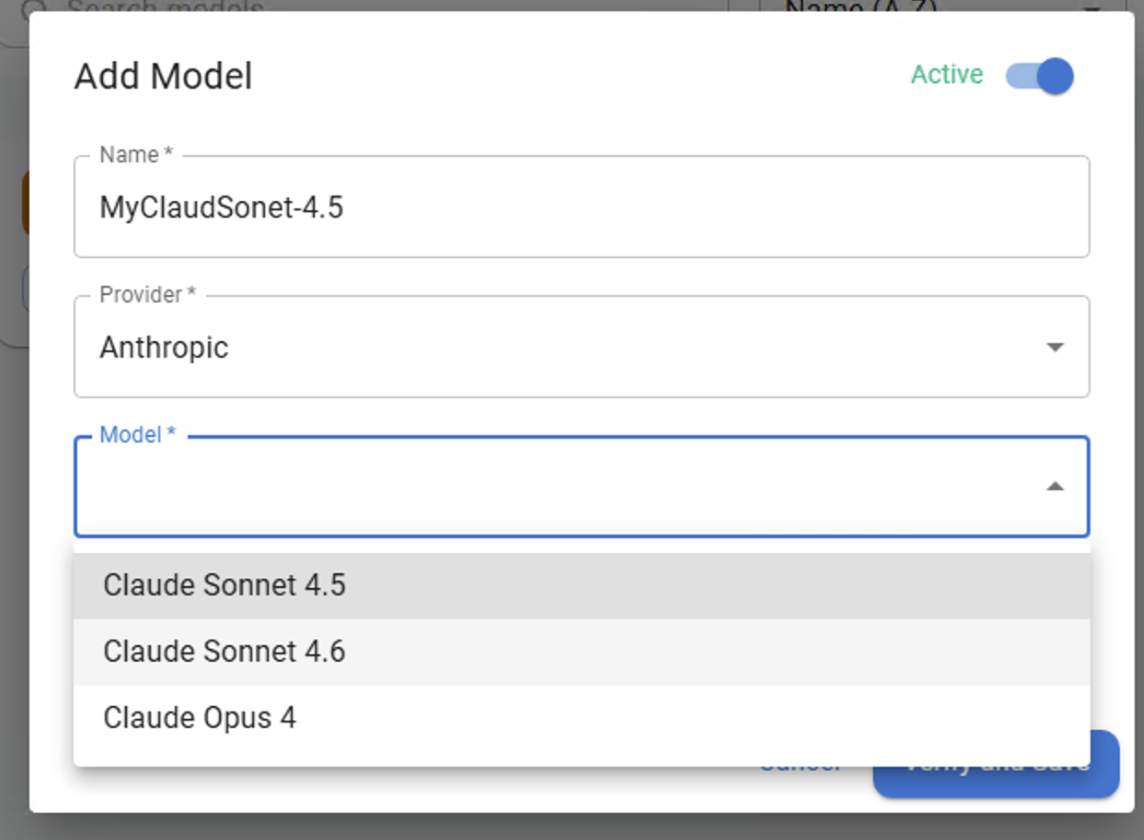
Add-Ins → Kernaro AI (Beta) → Configuration → Models → + Add New - Provider: Anthropic, Model: Claude Sonnet 4.6
- Paste API key → Save
The key is stored encrypted locally. No server-side setup required on Kernaro side.
Cost model: Pay-as-you-go, prepaid credits. Real-time usage visible in Anthropic Console dashboard. Set a spend limit to prevent surprises on large repositories.
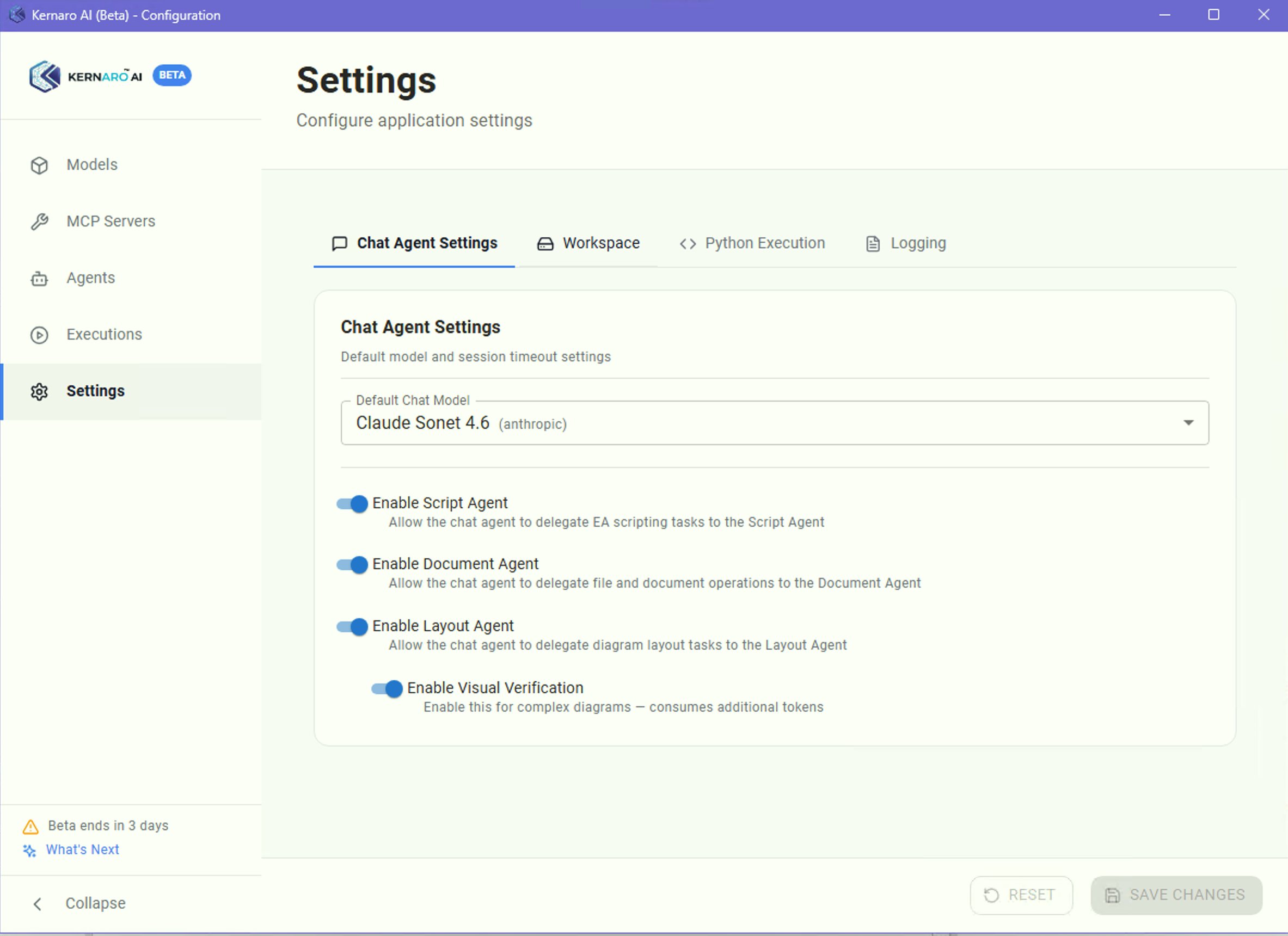
A4 · Chat Agent Settings
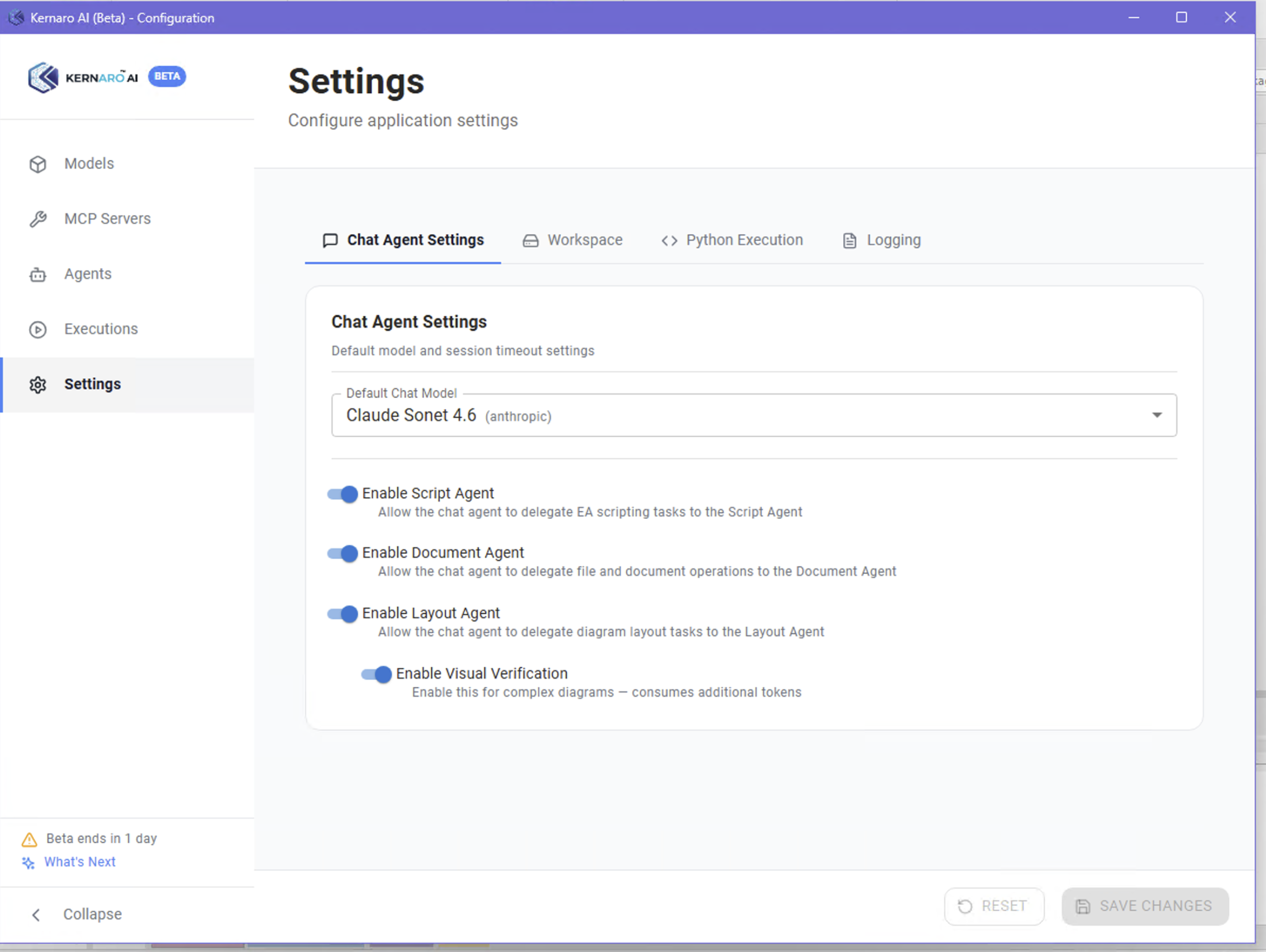
Settings → Chat Agent Settings
| Toggle | Function | Recommended |
|---|---|---|
| Enable Script Agent | Delegates EA scripting tasks to Script Agent | ✅ ON |
| Enable Document Agent | File and document operations | ✅ ON |
| Enable Layout Agent | Diagram layout tasks | ON for layout tests |
| Enable Visual Verification | Analyses diagram screenshots – consumes additional tokens | ⚠️ OFF by default |
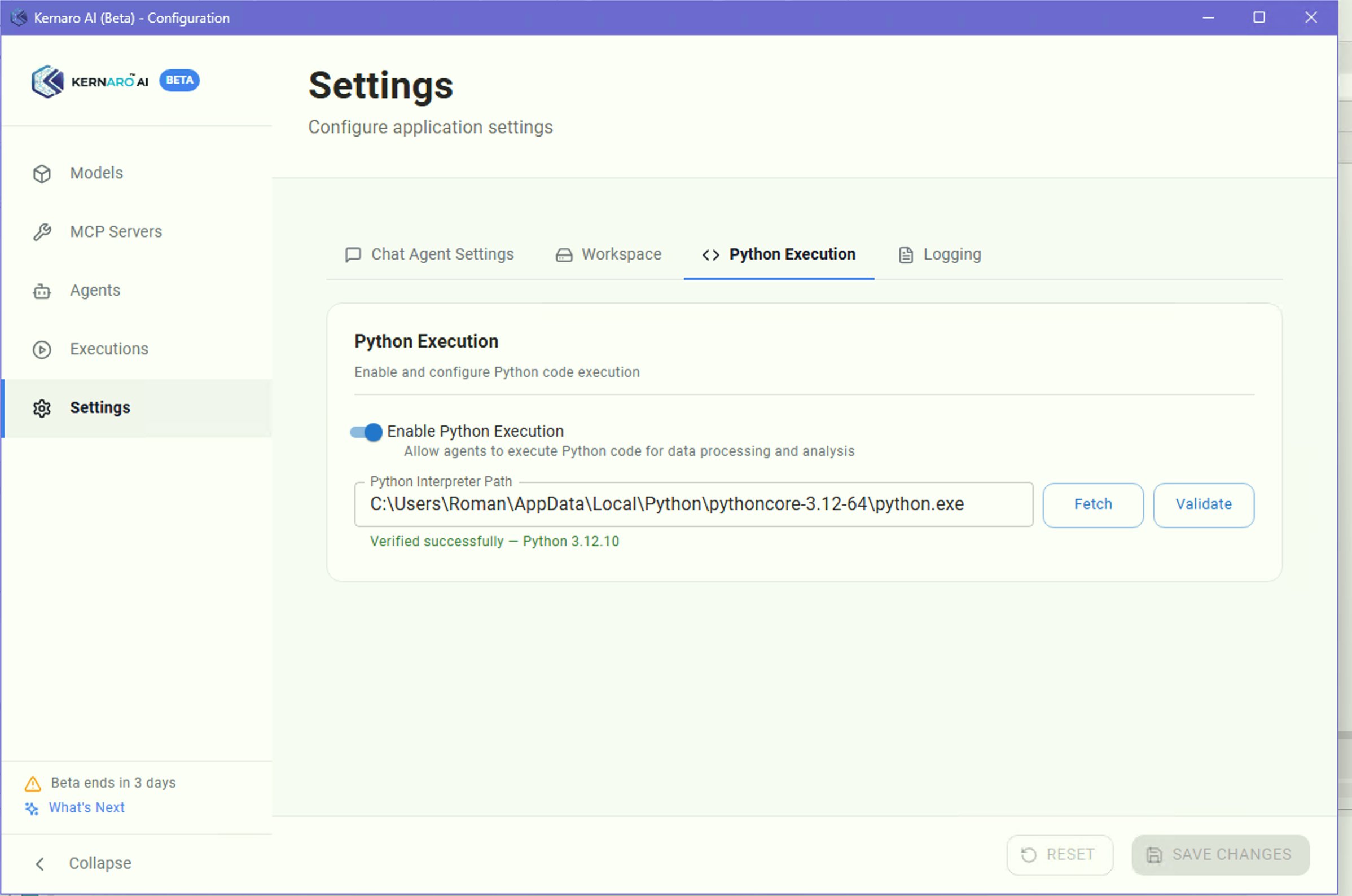
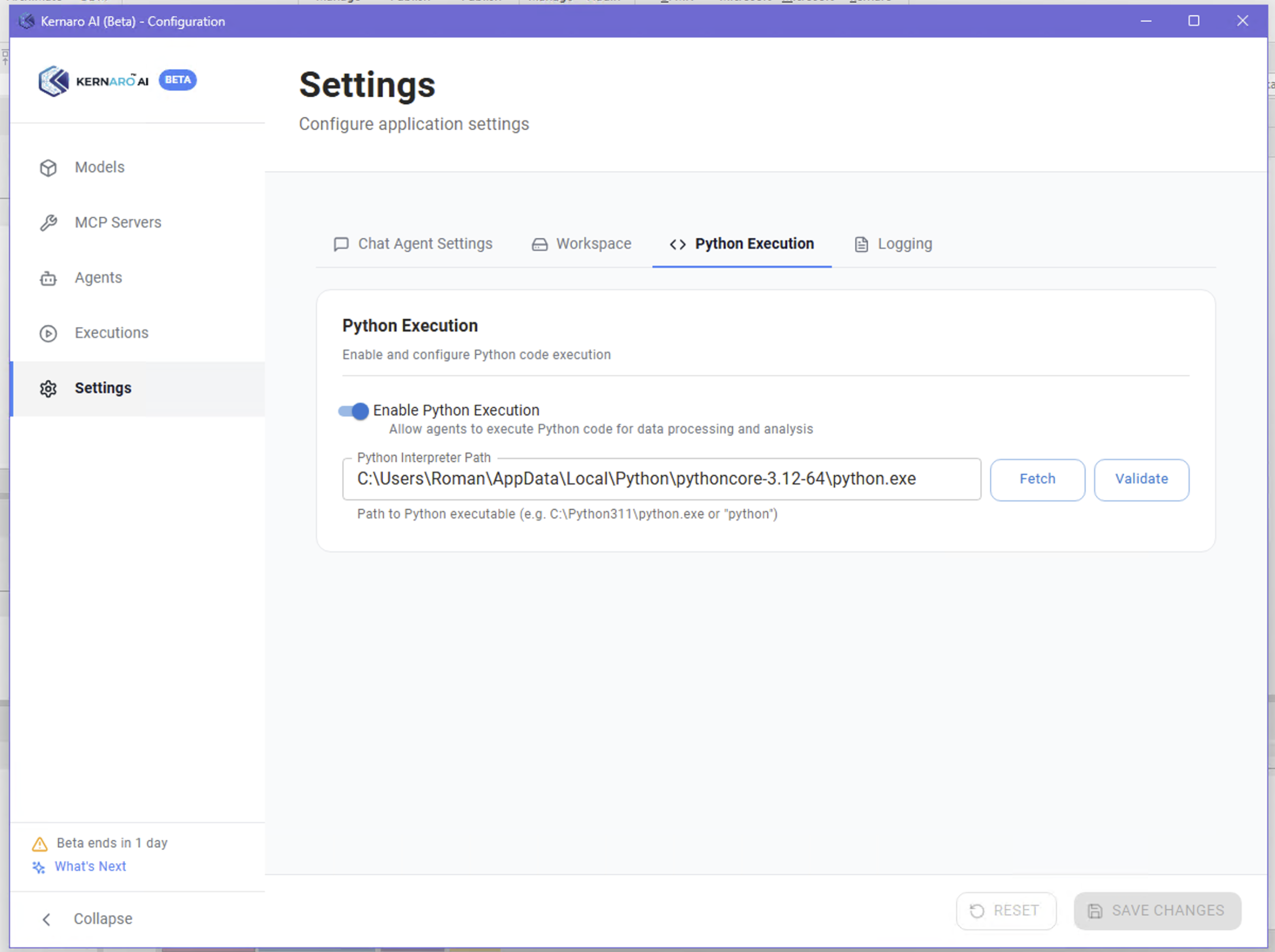
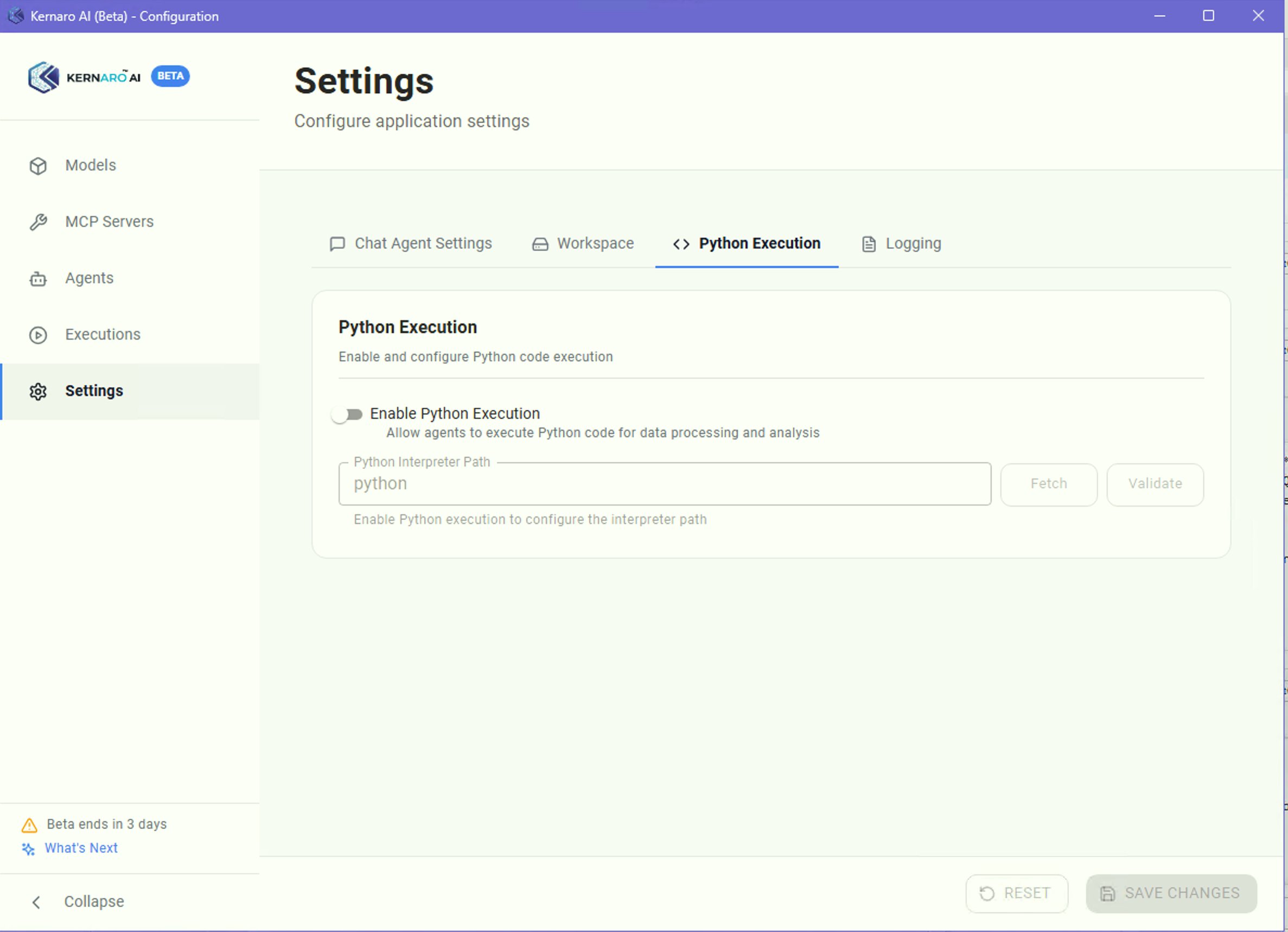
A5 · Python Execution
Settings → Python Execution
- Enable toggle:
Enable Python Execution - Enter interpreter path:
C:\Users\Roman\AppData\Local\Python\pythoncore-3.12-64\python.exe
- Click
Validate→ confirmVerified successfully – Python 3.12.10 Save Changes
Required Python packages (if using external scripts alongside Kernaro):
py -3.12 -m pip install pywin32 python-docx
py -3.12 C:\...\Scripts\pywin32_postinstall.py -install
Important: External Python scripts calling EA via
win32com.clientwill deadlock if Kernaro add-in is active simultaneously. EA is single-threaded COM – Kernaro holds the main thread. Use Kernaro Python Execution (internal) instead. See D – JavaScript for details.
A6 · First run – /instructions
After configuration, run /instructions in Kernaro Chat. Kernaro will:
- Scan the full repository (element types, naming patterns, package structure, stereotypes, tags)
- Generate a rulebook as persistent system context
- Load it automatically at the start of every future chat session
This is a one-time setup. Re-run if modelling standards change significantly.
Token cost:
/instructionson a large repository (~800 MB) can consume several thousand tokens. Run it once on the production model, then work primarily on scoped packages.
Product links
[1] Anthropic Console – https://console.anthropic.com
[2] Kernaro AI for EA – https://kernaro.sparxsystems.com
← Back to index | ← A – Configuration | → B – Chat
Images
[IMG-01]
[IMG-02]
[IMG-03]
[IMG-04]
[IMG-05]
[IMG-06]
[IMG-07]
[IMG-08]
[IMG-09]
[IMG-10]
[IMG-11]
[IMG-12]
[IMG-13]
[IMG-14]
[IMG-15]
[IMG-16]
[IMG-17]
[IMG-18]
[IMG-19]
[IMG-20]
[IMG-21]
[IMG-22]
[IMG-23]
[IMG-24]
[IMG-25]
[IMG-26]
[IMG-27]
[IMG-28]
[IMG-29]
[IMG-30]
[IMG-31]
[IMG-32]
[IMG-33]
[IMG-34]
[IMG-35]
[IMG-36]